Tutorial
How to run the cmdbox sample project in VSCode
Open the .sample/sample_project folder in the current directory with VSCode.
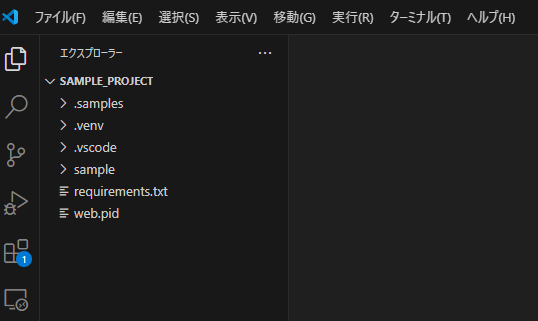
Install dependent libraries.
python -m venv .venv
. .venv/bin/activate
pip install -e .[app]
pip uninstall -y cmdbox
Run the project.
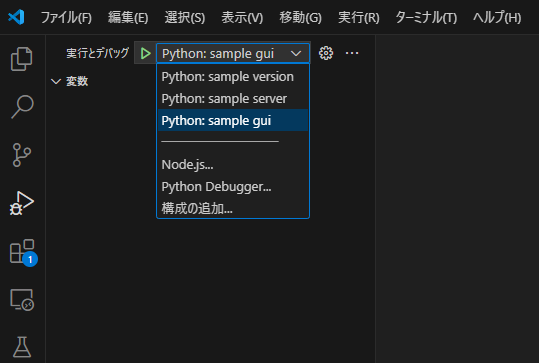
The localhost web screen will open.
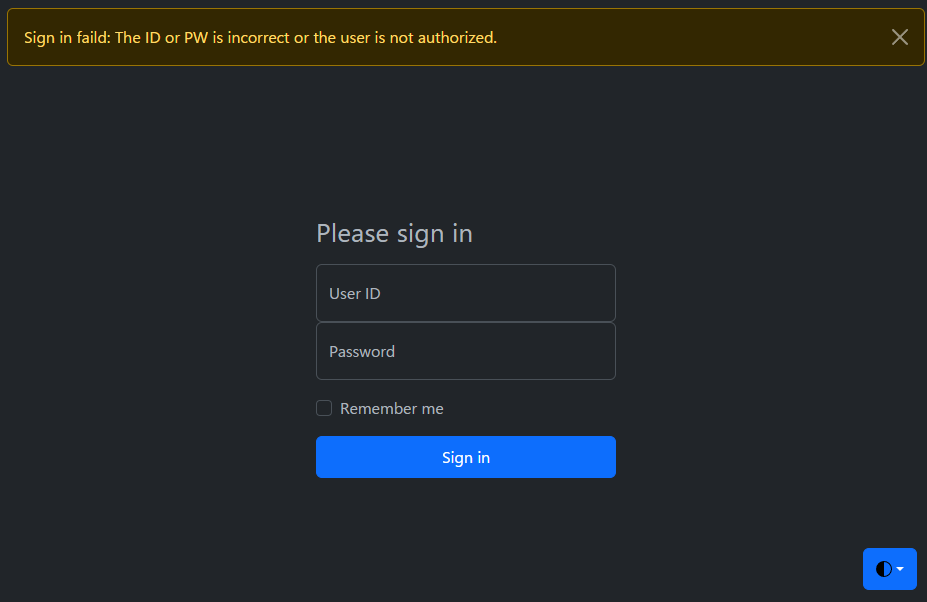
Enter user01 / user01 for the initial ID and PW to sign in.
Using this web screen, you can easily execute the commands implemented in cmdbox.
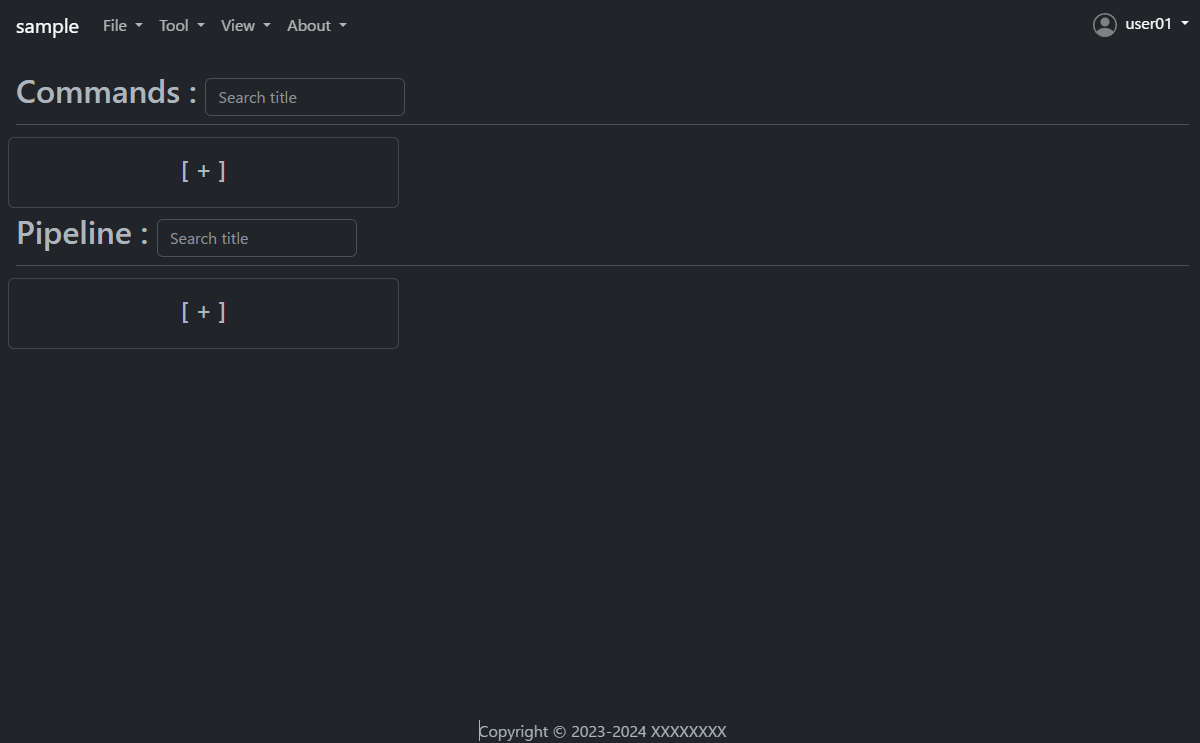
Let's look at the command to get a list of files as an example.
Press the plus button under Commands to open the Add dialog.
Then enter the following.
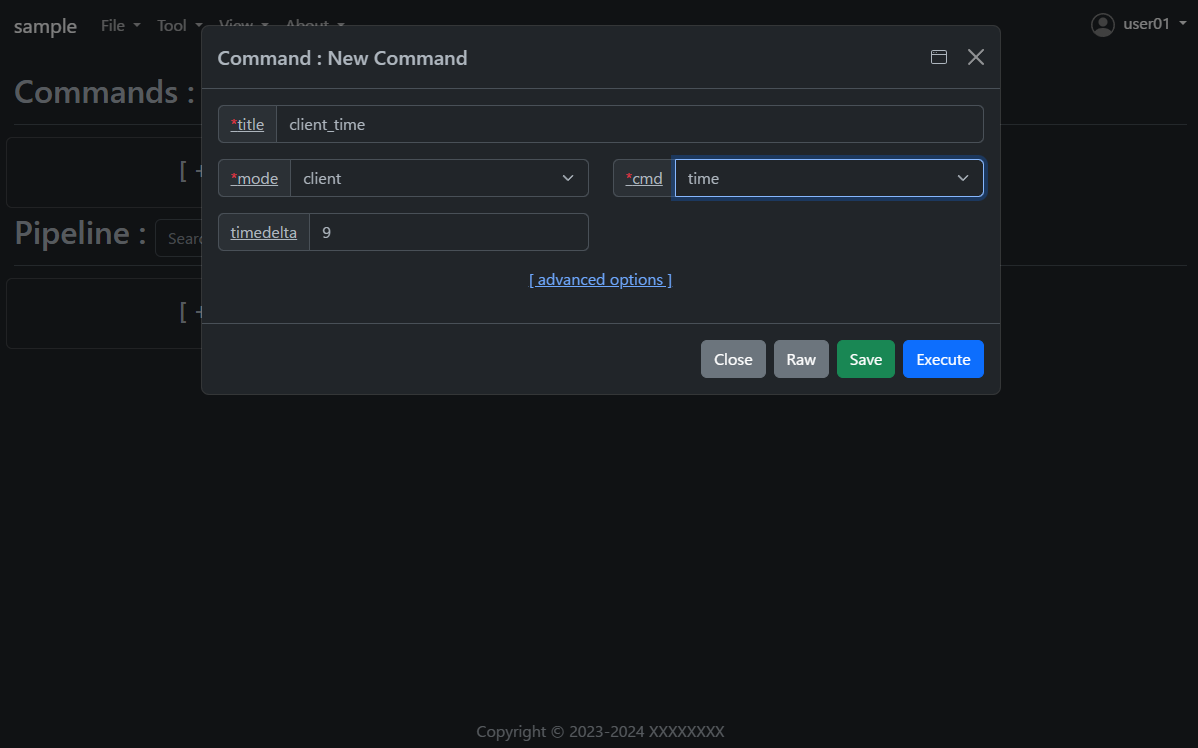
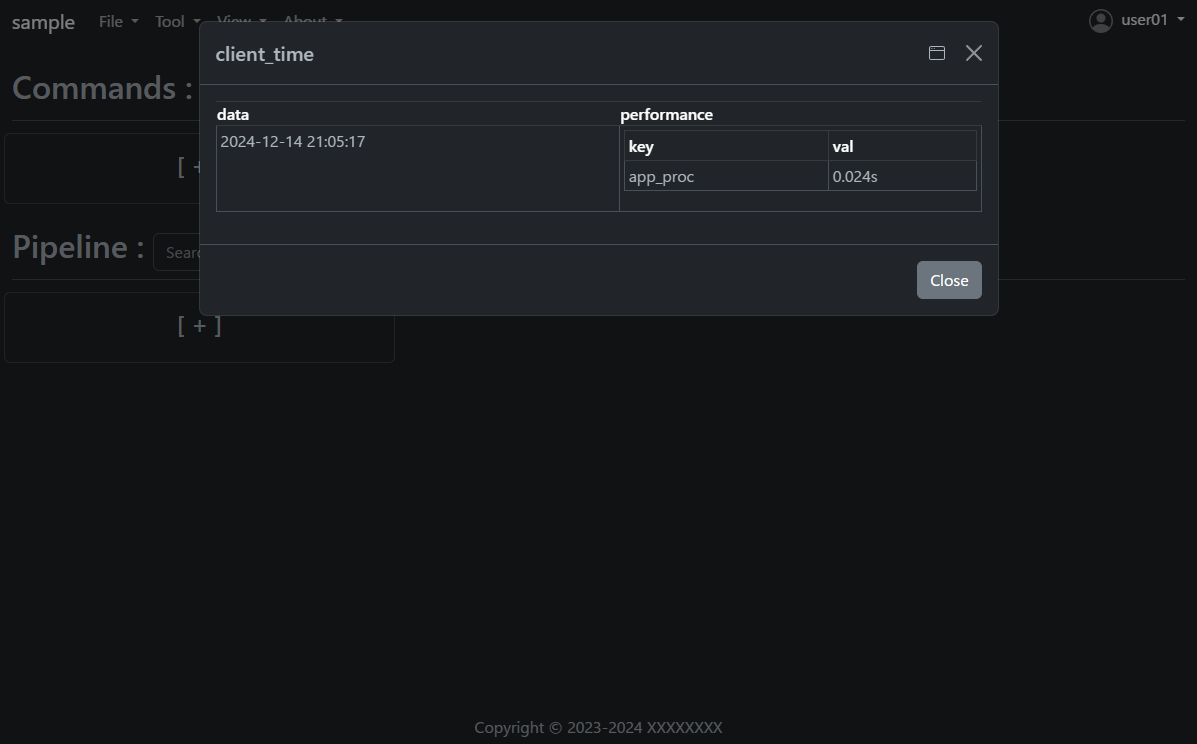
Press the Save button once and then press the Execute button.
The results of the command execution are displayed.
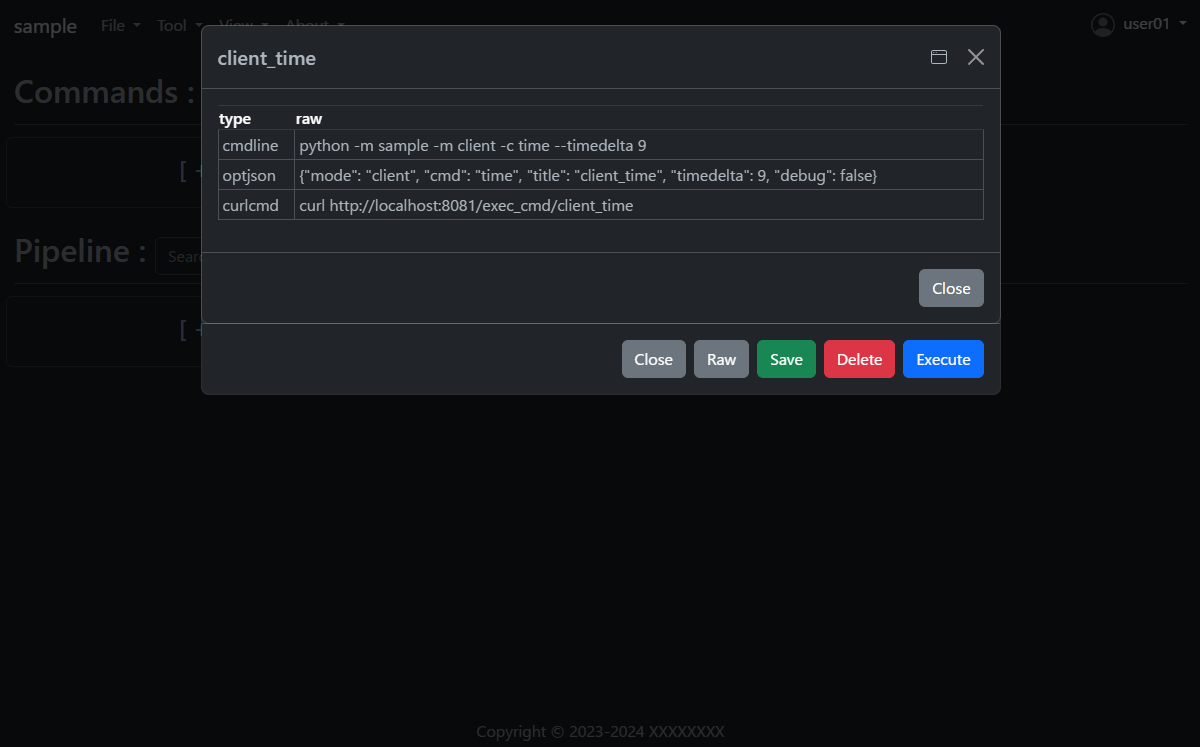
Open the saved client_time and press the Raw button.
You will see how to execute the same command on the command line; the RESTAPI URL is also displayed.
How to implement a new command using cmdbox
Under the sample/app/features/cli folder, you will find an implementation of the sample_client_time mentioned earlier.
The implementation is as follows. (Slightly abbreviated display)
Create the following code and save it in the sample/app/features/cli folder.
See sample_client_time.py .
from cmdbox.app import common, feature
from cmdbox.app.commons import validator
from cmdbox.app.options import Options
from typing import Dict, Any, Tuple, Union, List
import argparse
import datetime
import logging


class ClientTime(feature.Feature, validator.Validator):
    def get_mode(self) -> Union[str, List[str]]:
        """
        この機能のモードを返します

        Returns:
            Union[str, List[str]]: モード
        """
        return "client"

    def get_cmd(self):
        """
        この機能のコマンドを返します

        Returns:
            str: コマンド
        """
        return 'time'

    def get_option(self):
        """
        この機能のオプションを返します

        Returns:
            Dict[str, Any]: オプション
        """
        return dict(
            use_redis=self.USE_REDIS_FALSE, nouse_webmode=False, use_agent=False,
            description_ja="クライアント側の現在時刻を表示します。",
            description_en="Displays the current time at the client side.",
            choice=[
                dict(opt="timedelta", type=Options.T_INT, default=9, required=False, multi=False, hide=False, choice=None,
                        description_ja="時差の時間数を指定します。",
                        description_en="Specify the number of hours of time difference."),
            ])

    @validator.apprun_check
    def apprun(self, logger:logging.Logger, args:argparse.Namespace, tm:float, pf:List[Dict[str, float]]=[]) -> Tuple[int, Dict[str, Any], Any]:
        """
        この機能の実行を行います

        Args:
            logger (logging.Logger): ロガー
            args (argparse.Namespace): 引数
            tm (float): 実行開始時間
            pf (List[Dict[str, float]]): 呼出元のパフォーマンス情報

        Returns:
            Tuple[int, Dict[str, Any], Any]: 終了コード, 結果, オブジェクト
        """
        tz = datetime.timezone(datetime.timedelta(hours=args.timedelta))
        dt = datetime.datetime.now(tz)
        ret = dict(success=dict(data=dt.strftime('%Y-%m-%d %H:%M:%S')))
        common.print_format(ret, args.format, tm, args.output_json, args.output_json_append, pf=pf)
        if 'success' not in ret:
            return self.RESP_WARN, ret, None
        return self.RESP_SUCCESS, ret, None
If you want to implement server-side processing, please refer to
`sample_server_time`.You can also add commands to be executed on the server side.
The commands are sent to the server via Redis.
This mechanism allows multiple servers to process the data, thereby increasing throughput.
See sample_server_time .
from cmdbox.app import common, client, feature
from cmdbox.app.commons import redis_client, validator
from cmdbox.app.options import Options
from pathlib import Path
from typing import Dict, Any, Tuple, Union, List
import argparse
import datetime
import logging


class ServerTime(feature.Feature, validator.Validator):
    def get_mode(self) -> Union[str, List[str]]:
        """
        この機能のモードを返します

        Returns:
            Union[str, List[str]]: モード
        """
        return "server"

    def get_cmd(self):
        """
        この機能のコマンドを返します

        Returns:
            str: コマンド
        """
        return 'time'

    def get_option(self):
        """
        この機能のオプションを返します

        Returns:
            Dict[str, Any]: オプション
        """
        return dict(
            use_redis=self.USE_REDIS_TRUE, nouse_webmode=False, use_agent=False,
            description_ja="サーバー側の現在時刻を表示します。",
            description_en="Displays the current time at the server side.",
            choice=[
                dict(opt="host", type=Options.T_STR, default=self.default_host, required=True, multi=False, hide=True, choice=None,
                        description_ja="Redisサーバーのサービスホストを指定します。",
                        description_en="Specify the service host of the Redis server."),
                dict(opt="port", type=Options.T_INT, default=self.default_port, required=True, multi=False, hide=True, choice=None,
                        description_ja="Redisサーバーのサービスポートを指定します。",
                        description_en="Specify the service port of the Redis server."),
                dict(opt="password", type=Options.T_PASSWD, default=self.default_pass, required=True, multi=False, hide=True, choice=None,
                        description_ja="Redisサーバーのアクセスパスワード(任意)を指定します。省略時は `password` を使用します。",
                        description_en="Specify the access password of the Redis server (optional). If omitted, `password` is used."),
                dict(opt="svname", type=Options.T_STR, default=self.default_svname, required=True, multi=False, hide=True, choice=None,
                        description_ja="サーバーのサービス名を指定します。省略時は `server` を使用します。",
                        description_en="Specify the service name of the inference server. If omitted, `server` is used."),
                dict(opt="timedelta", type=Options.T_INT, default=9, required=False, multi=False, hide=False, choice=None,
                        description_ja="時差の時間数を指定します。",
                        description_en="Specify the number of hours of time difference."),
                dict(opt="retry_count", type=Options.T_INT, default=3, required=False, multi=False, hide=True, choice=None,
                        description_ja="Redisサーバーへの再接続回数を指定します。0以下を指定すると永遠に再接続を行います。",
                        description_en="Specifies the number of reconnections to the Redis server.If less than 0 is specified, reconnection is forever."),
                dict(opt="retry_interval", type=Options.T_INT, default=5, required=False, multi=False, hide=True, choice=None,
                        description_ja="Redisサーバーに再接続までの秒数を指定します。",
                        description_en="Specifies the number of seconds before reconnecting to the Redis server."),
                dict(opt="timeout", type=Options.T_INT, default="15", required=False, multi=False, hide=True, choice=None,
                        description_ja="サーバーの応答が返ってくるまでの最大待ち時間を指定。",
                        description_en="Specify the maximum waiting time until the server responds."),
            ])

    @validator.apprun_check
    def apprun(self, logger:logging.Logger, args:argparse.Namespace, tm:float, pf:List[Dict[str, float]]=[]) -> Tuple[int, Dict[str, Any], Any]:
        """
        この機能の実行を行います

        Args:
            logger (logging.Logger): ロガー
            args (argparse.Namespace): 引数
            tm (float): 実行開始時間
            pf (List[Dict[str, float]]): 呼出元のパフォーマンス情報

        Returns:
            Tuple[int, Dict[str, Any], Any]: 終了コード, 結果, オブジェクト
        """
        cl = client.Client(logger, redis_host=args.host, redis_port=args.port, redis_password=args.password, svname=args.svname)
        ret = cl.redis_cli.send_cmd(self.get_svcmd(), [str(args.timedelta)],
                                    retry_count=args.retry_count, retry_interval=args.retry_interval, timeout=args.timeout)
        common.print_format(ret, args.format, tm, args.output_json, args.output_json_append, pf=pf)
        if 'success' not in ret:
            return self.RESP_WARN, ret, None
        return self.RESP_SUCCESS, ret, None

    def is_cluster_redirect(self):
        """
        クラスター宛のメッセージの場合、メッセージを転送するかどうかを返します

        Returns:
            bool: メッセージを転送する場合はTrue
        """
        return False

    def svrun(self, data_dir:Path, logger:logging.Logger, redis_cli:redis_client.RedisClient, msg:List[str],
              sessions:Dict[str, Dict[str, Any]]) -> int:
        """
        この機能のサーバー側の実行を行います

        Args:
            data_dir (Path): データディレクトリ
            logger (logging.Logger): ロガー
            redis_cli (redis_client.RedisClient): Redisクライアント
            msg (List[str]): 受信メッセージ
            sessions (Dict[str, Dict[str, Any]]): セッション情報

        Returns:
            int: 終了コード
        """
        td = 9 if msg[2] == None else int(msg[2])
        tz = datetime.timezone(datetime.timedelta(hours=td))
        dt = datetime.datetime.now(tz)
        ret = dict(success=dict(data=dt.strftime('%Y-%m-%d %H:%M:%S')))
        redis_cli.rpush(msg[1], ret)
        return self.RESP_SUCCESS

    def edgerun(self, opt, tool, logger, timeout, prevres = None):
        """
        この機能のエッジ側の実行を行います

        Args:
            opt (Dict[str, Any]): オプション
            tool (edge.Tool): 通知関数などedge側のUI操作を行うためのクラス
            logger (logging.Logger): ロガー
            timeout (int): タイムアウト時間
            prevres (Any): 前コマンドの結果。pipeline実行の実行結果を参照する時に使用します。

        Yields:
            Tuple[int, Dict[str, Any]]: 終了コード, 結果
        """
        status, res = tool.exec_cmd(opt, logger, timeout, prevres)
        tool.notify(res)
        yield 1, res
Open the file .sample/extensions/features.yml. The file should look something like this.
This file specifies where new commands are to be read.
For example, if you want to add a package to read, add a new package and prefix to features.cli.
Note that features.web can be used to add a new web screen.
If you only want to call commands added in features.cli via RESTAPI, no additional implementation is needed in features.web.
There are other items that can be set in addition to the above, please refer to Features for details.
features:
    cli:
        - package: sample.app.features.cli
          prefix: sample_
    web:
        - package: sample.app.features.web
          prefix: sample_web_
The following files should also be known when using commands on the web screen or RESTAPI.
Open the file .sample/extensions/user_list.yml. The file should look something like this.
This file manages the users and groups that are allowed Web access and their rules.
The rule of the previous command is allow for users in the user group in cmdrule.rules.
There are other items that can be set in addition to the above, please refer to Authentication for details.
users:
- uid: 1
  name: admin
  password: XXXXXXXXXXXXXX
  hash: plain
  groups: [admin]
  email: admin@aaa.bbb.jp
  home: /.users/admin
- uid: 2
  name: develop
  password: XXXXXXXXXXXXXX
  hash: plain
  groups: [develop]
  email: develop@aaa.bbb.jp
  home: /.users/develop
- uid: 3
  name: master
  password: XXXXXXXXXXXXXX
  hash: plain
  groups: [master]
  email: master@aaa.bbb.jp
  home: /.users/master
- uid: 101
  name: user01
  password: XXXXXXXXXXXXXX
  hash: md5
  groups: [user]
  email: user01@aaa.bbb.jp
  home: /.users/user01
groups:
- gid: 1
  name: admin
  home: /.groups/admin
- gid: 2
  name: develop
  home: /.groups/develop
- gid: 3
  name: master
  home: /.groups/master
- gid: 4
  name: guest
  home: /.groups/guest
- gid: 101
  name: user
  home: /.groups/user
cmdrule:
  policy: deny
  rules:
  - groups: [admin]
    coercion:
      fwpath: "['/.users','/.groups']"
      from_fwpath: "['/.users','/.groups']"
      to_fwpath: "['/.users','/.groups']"
    rule: allow
pathrule:
  policy: deny
  rules:
  - groups:
    - admin
    - develop
    - master
    paths: [/]
    rule: allow
How to edit users and groups in Web mode
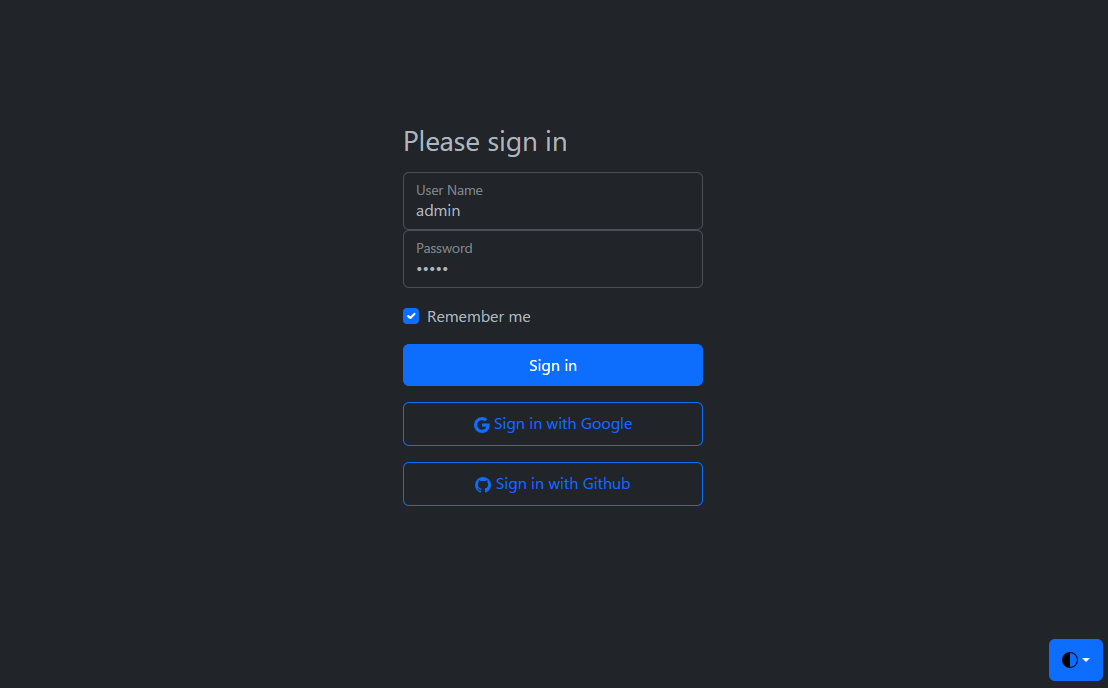
Open the http://localhost:8081/gui screen in the browser.
Enter admin / admin for the initial ID and PW to sign in.
Select Users from the Tool menu.
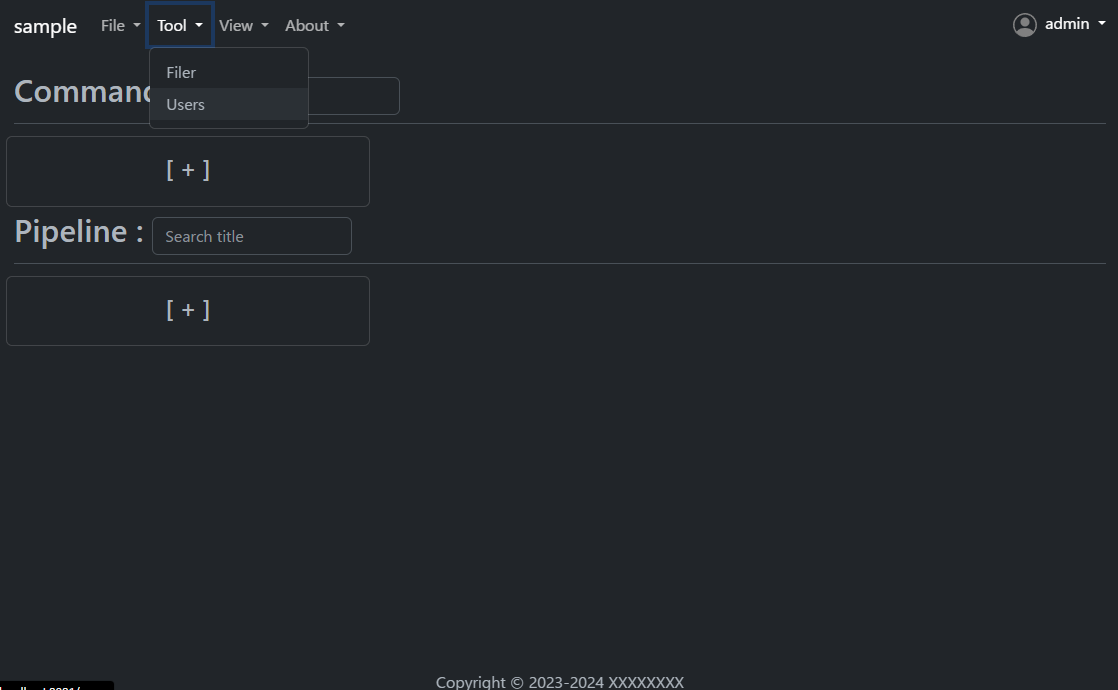
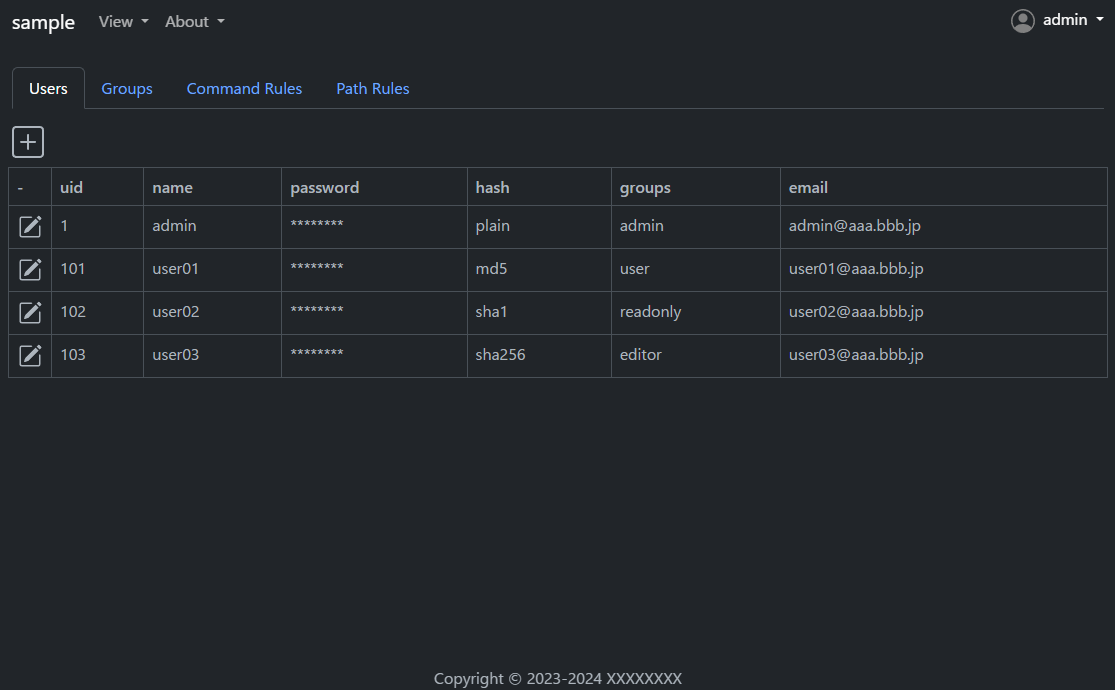
Users and groups can be edited on this screen.
Command rules and path rules can also be checked.
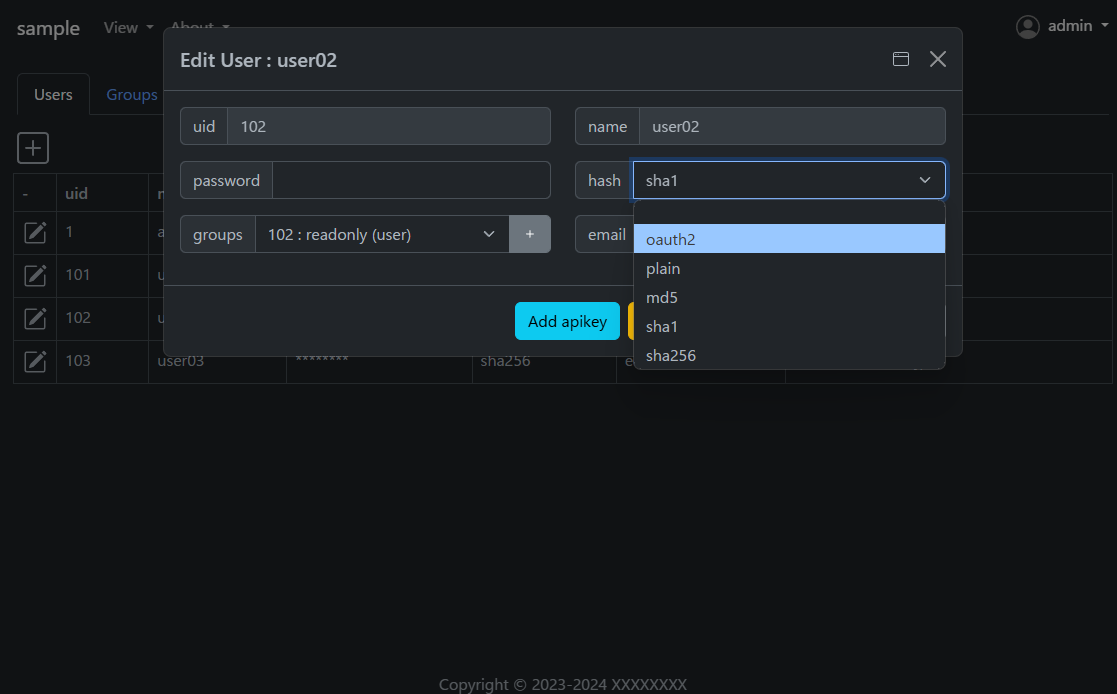
If you specify oauth2 in the hash field, you can set the user to have OAuth2 authentication enabled.
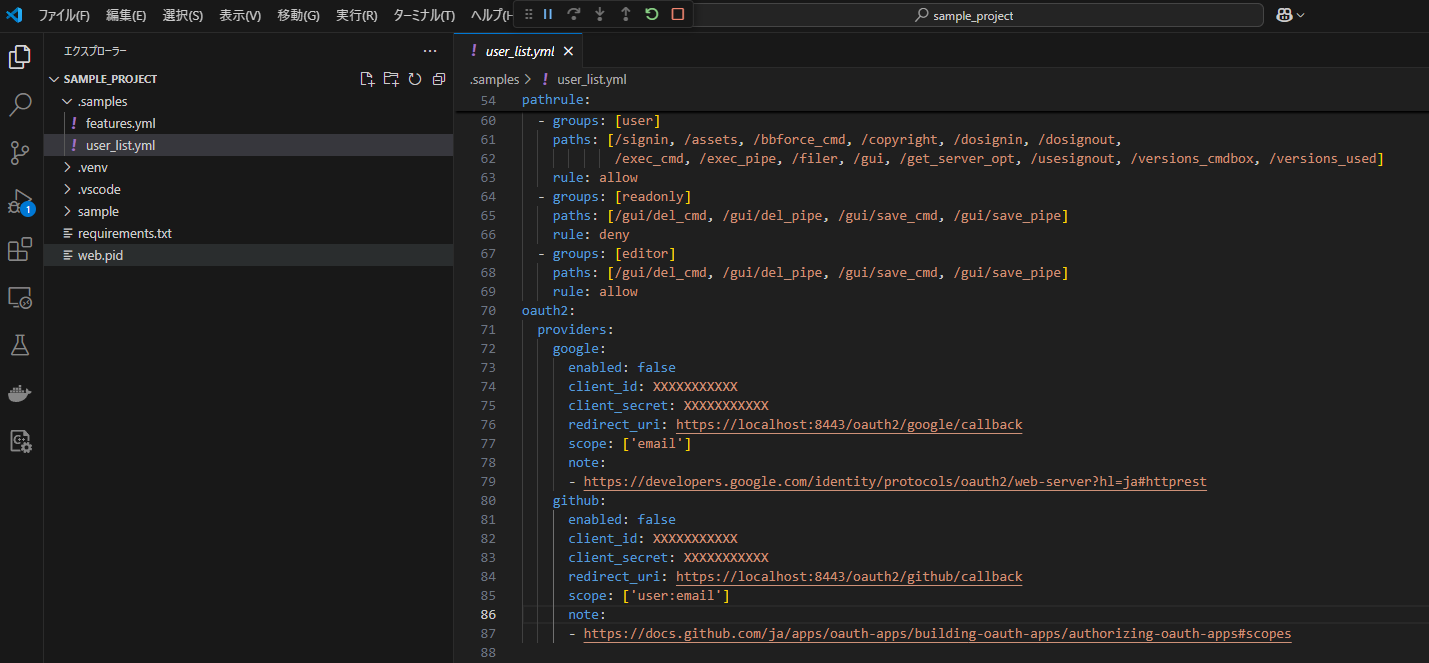
To enable oauth2 in the cmdbox, set the oauth2 entry in .sample/user_list.yml.
Below is an example of Google and GitHub settings.
Set oauth2/providers/google/enabled and oauth2/providers/github/enabled and oauth2/providers/azure/enabled to true.
The client_id and client_secret should be obtained and set in each provider's configuration screen.
For Azure, the tenant_id must also be set.
The redirect_uri should be set to accept in each provider's configuration screen.
The scope is basically unchanged.
Restart web mode and open http://localhost:8081/gui to see the OAuth2 authentication button.